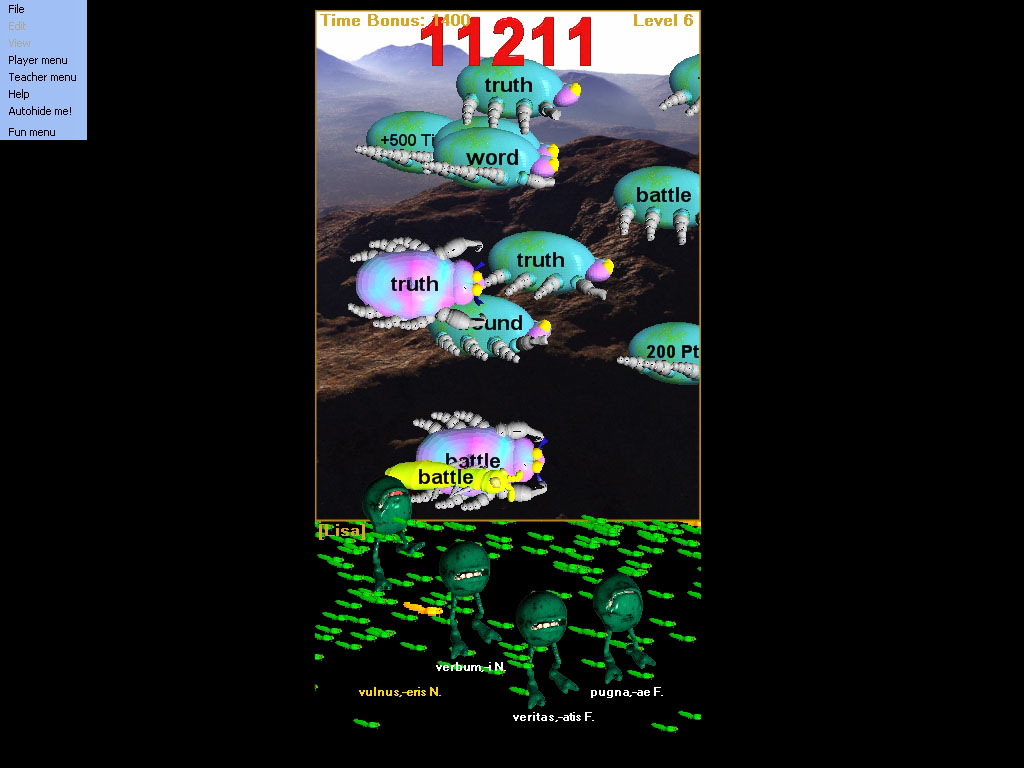
The Hungry Frog French software program default is to always autohide the Hungry Frog game control menu. To make the main control menu appear, you can perform any one of the following actions:
Double Click anywhere in the main Hungry Frog French game world screen
Move the mouse to the very top of the computer display screen
Move the mouse to the very bottom of the computer display screen
Move the mouse into the far upper left display region (under where the menu will appear)
In the Hungry Frog French language software program and the other Hungry Frog software version 6.0 programs such as Hungry Frog Homeric Greek, you can turn on or off the 'Autohide me!' feature simply by selecting the 'Autohide me!' menu item. Each time you select the menu item, you toggle the check box status from Autohide me! ON to Autohide me! OFF or visa versa. The orange colored check box to the left of the text menu listing indicates the current status. The Autohide me! feature functions whether you are playing in full screen mode or playing in windowed mode, but the Hungry Frog French language game display looks and feels best if you always leave Autohide me! ON and always play in full screen mode.
Hungryfrog Education Software
|
Hungryfrog User Community Participate in the Hungry Frog Education Software User Community to share your lessons and ideas with others and to report program bugs and suggest improvements to the PC computer software and the free Java applets at the web site. |

The Hungry Frog French game screen with the menu displayed always: