The Hungry Frog French Teacher Menu Screen Capture feature allows you to enable real-time image capture from the game in real-time as it is playing.
Teacher Menu | Screen Capture:
Clicking on the Hungry Frog French Teacher Menu Screen Capture menu item brings up the Screen Capture
The Hungry Frog French Teacher Menu Screen Capture setttings display dialog:
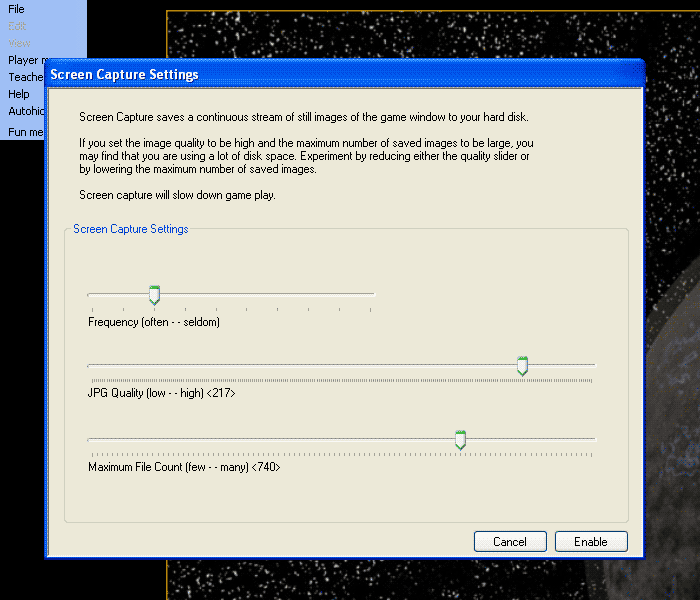
The controls for Screen Capture are extremely simple, but depending upon how much free disk space you have available on your hard drive, you may want to give at least a little thought to how many files you want to record. You may find that for large displays when saving high quality images your game plays slowly and play appears jerky or interrupted by the screen capture process.
On smaller displays with a modern computer, you can happily play with Screen Capture turned on and not see a performance change in the game play. It can be fun to do this and look at the movie of your previous game session.
Controls for the Screen Capture are:
'Frequency' slider - sets how often the computer takes an frame capture.
'JPG Quality' slider - sets the overall image quality of the saved still frame.
'Maximum File Count' slider - the maximum number of still frames saved.
For most normal situations you will encounter using a frequency on the 'often' end is best. You want to capture most of the action, and some short tongue reaches happen very fast. You can see that in the movies presented in these pages often there are missing bits (such as score bursts) which were not captured. There are also 3rd party programs to capture movies of your PC screen, but they are different topics for discussion. If you are capturing mostly dialog shots, then less often is better to avoid duplicate frames. All of the movies you see at this web site were captured using the Screen Capture feature. Mostly we used the most often or 2nd most ofen Frequency setting.
JPG quality slider position is best set to at least 40 or 50, but if you want a lot of very small files set it under 50. Above around 150 you probably will notice little difference as you increase it further.
Hungryfrog Education Software
|
Hungryfrog User Community Participate in the Hungry Frog Education Software User Community to share your lessons and ideas with others and to report program bugs and suggest improvements to the PC computer software and the free Java applets at the web site. |
Maximum file count is completely up to you. You can save as many files as you have space to accomodate on your computer hard drive. The saved files are named sequentially, and when the file count reaches the maximum you have selected, they start again at the first file in the sequence. In other words, if you are saving 500 frames maximum, and you keep playing as you record 498, 499 and 500 frames the 501st frame will OVERWRITE the 1st frame recorded. It is essentially a moving window into the timeline of your frame capture sequence. That can mean that sometimes the first frames in the numerical sequence of file names are more recent frames that the last frames recorded.
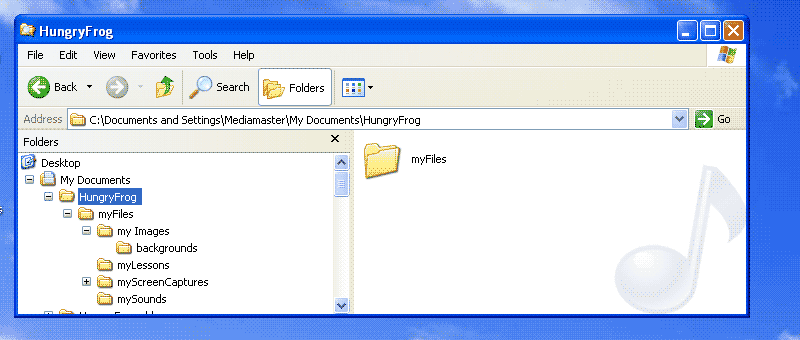
IMPORTANT: Files are saved in your 'myScreenCaptures' folder in your 'myFiles' folder.
Your frames are saved in 'myScreenCaptures' folder: