
The Teacher Menu Student Statistics menu item allows you to view statistical information about all the students who have as their log-in preferences 'Remember me on this Computer' checked.
Teacher Menu | Student Statistics
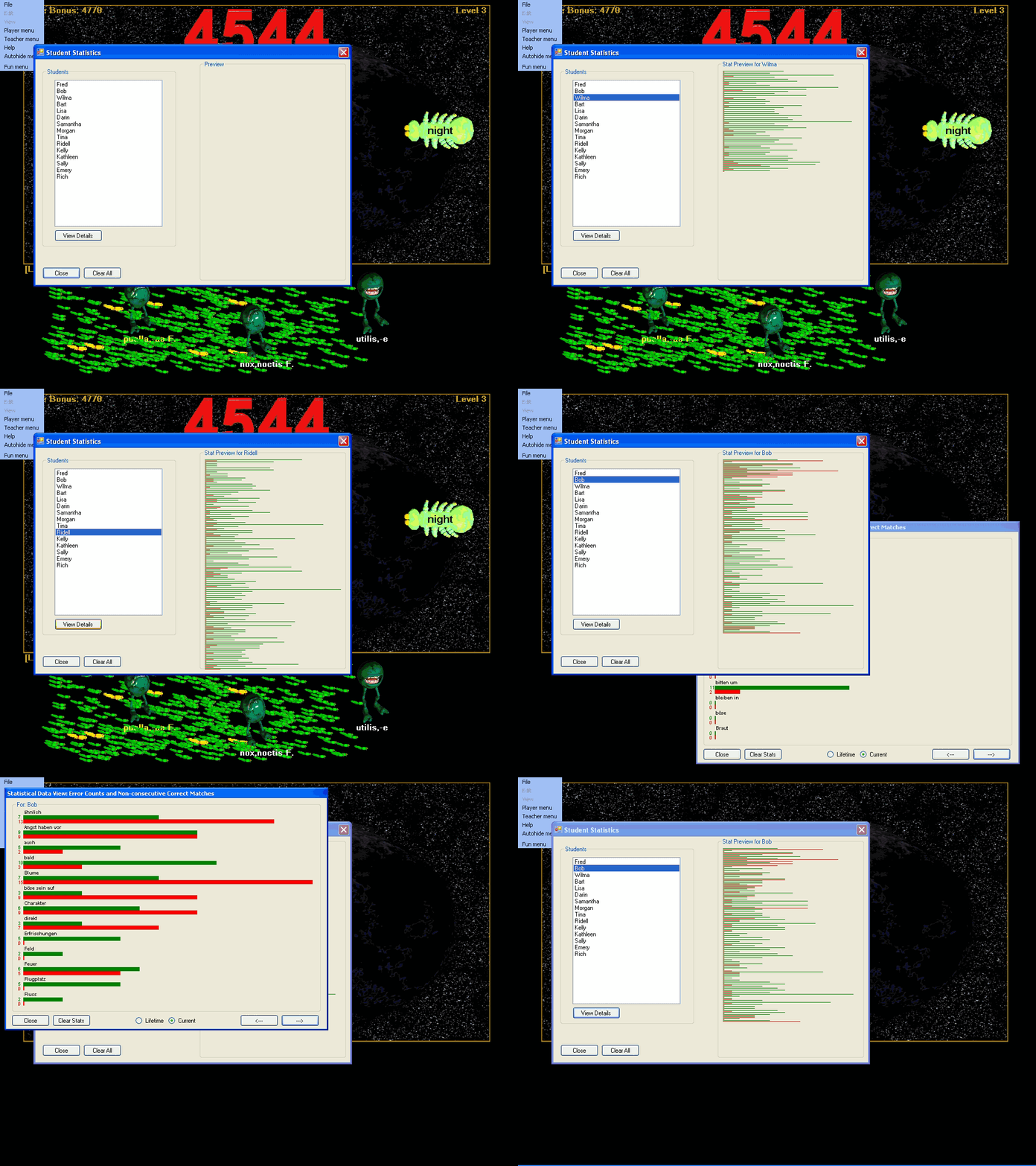
Clicking on the Teacher Menu brings up the Student Statistics display:
NOTE: Students who do not have 'Remember me on this Computer' checked do not have their statistical data saved when they exit the game by logging out.
The controls for the student statistics viewer are:
'Students' list box - list of all available students with stored statistical data.
'Preview' pane - a quick preview showing the selected student's statistics in overview format.
'View Details' button - click to view in detail window the selected student's statistics (lifetime and current).
'Close' - close and exit.
'Clear All' - clear all statistical data for all students (stats can also be deleted one student at a time using their 'View Details' page).
When an individual student's statistics are displayed they are displayed in the same manner as for the 'my Statistical Info' on the Player Menu | My Statistical Info menu item.
Selecting a student in the 'Students' list and viewing the 'Preview' visualization:
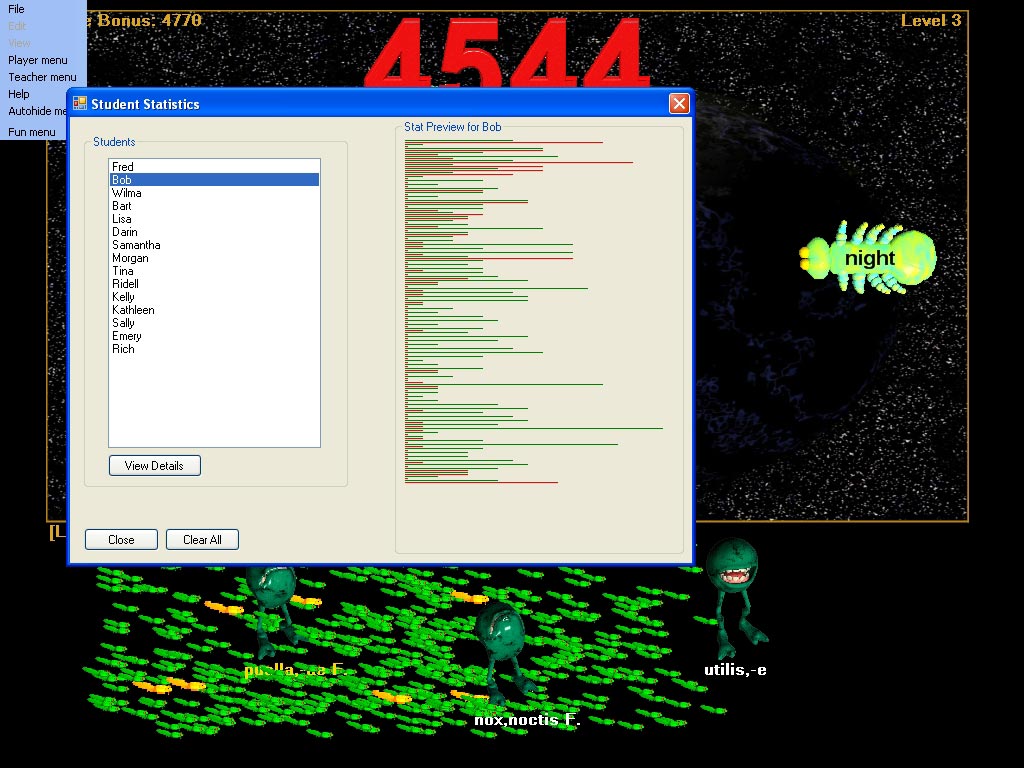
Red bars indicate missed attempts at a given dictionary entry. Green bars represent successful attempts at a given dictionary entry. The 'Preview' page does not display all of the dictionary words that the student may have encountered, but it scales a representative portion to fit into the display area to give an overall feel for how that student is progressing. To see the detailed analysis of a student, click the 'View Details' button.
Hungryfrog Education Software
|
Hungryfrog User Community Participate in the Hungry Frog Education Software User Community to share your lessons and ideas with others and to report program bugs and suggest improvements to the PC computer software and the free Java applets at the web site. |
Clicking the 'View Details' button brings up detailed statistics for the student:
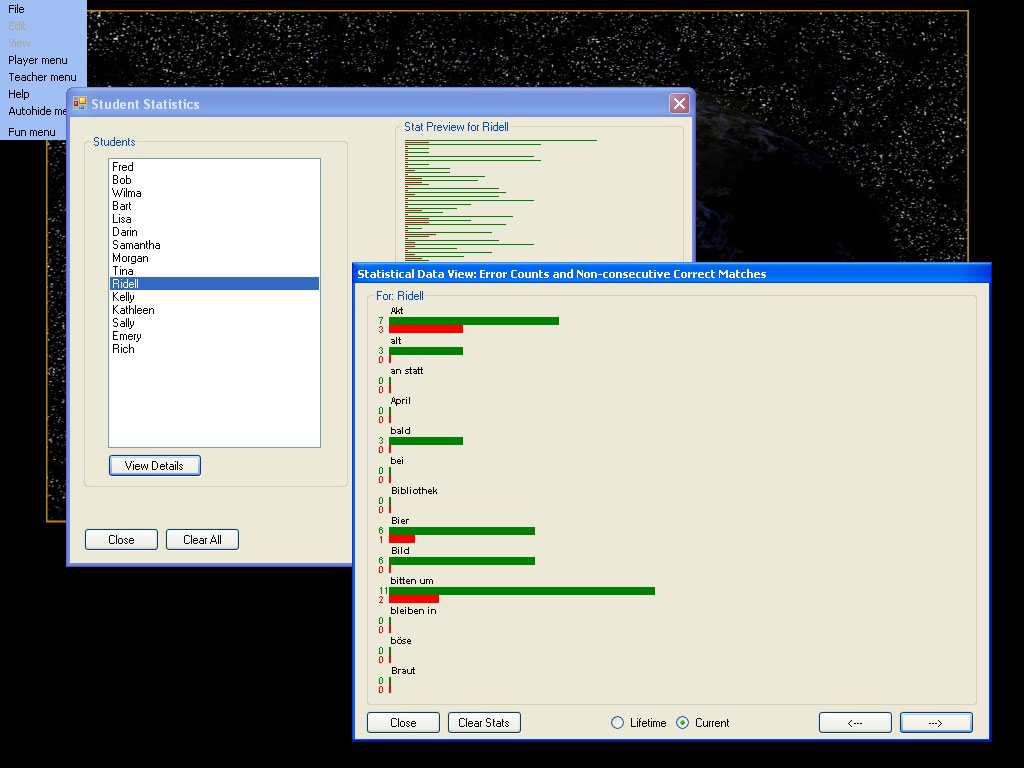
The first screen displays the 'Current' dictionary words that the student is using in the actively playing lesson they into which they are logged-in. The 'Current' statitstics include ALL the words in the lesson the player is logged into, including words they have not yet encountered in the game. That is why you will see sometiems entries of '0,0' for dictionary word entries - because the student has not encountered those lesson words yet. In the example, the Current statistics are displaying for a student who is currently logged into a French language game. The display shows some French words the student has seen and been learning, and some the student has not yet been presented by the game engine. The game, according to the settings you select in Advanced Option, will emphasize more or less strongly words that the student is having problems learning.
The 'View Details' window works in the same manner as for the 'my Statistical Info' on the Player Menu | My Statistical Info menu. You can view 'Lifetime' and 'Current' stats and delete individually for the displayed student their 'Lifetime' and 'Current' stats or both. Alternatively, you can use 'Clear All' to delete all stats for all students.
Unlike the 'My Statistical Info' item in the Player Menu, in the Teacher Menu student statistics viewer you can have as many 'View Details' windows open as you would like.
For example, viewing two student statistical detail windows simultaneously:
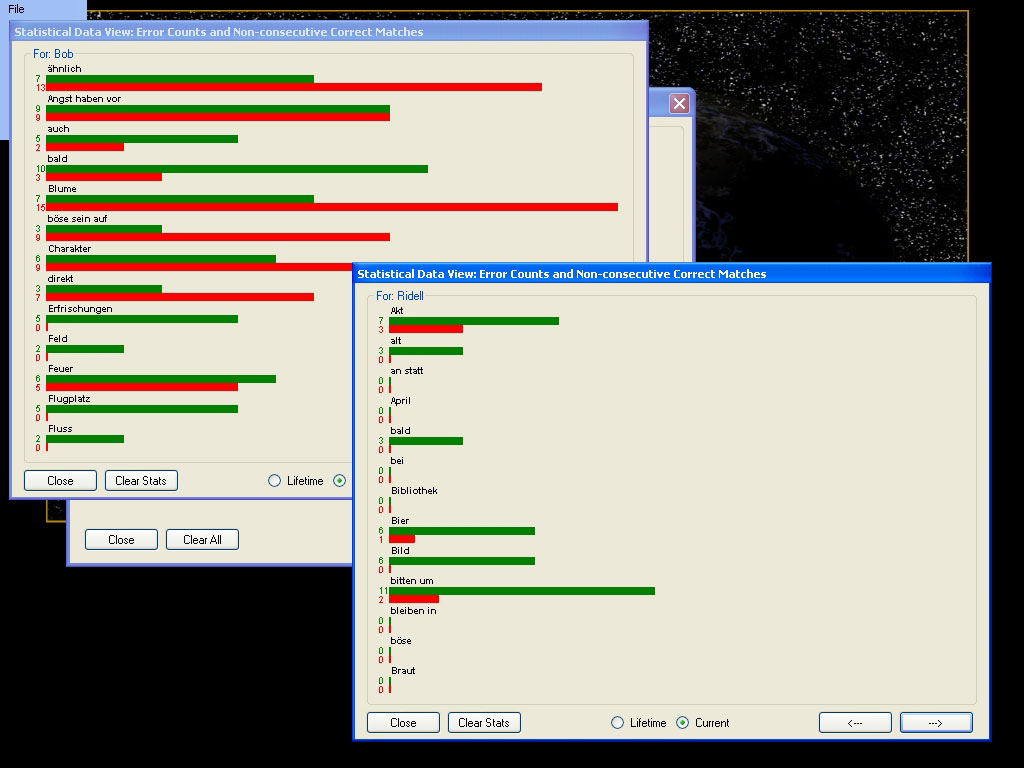
You can see in this example, that it can be beneficial to have more than one detail view open at a time, as it allows you to get a clearer view of how one student is performing relative to another student. In the example, both are using the game to learn French language vocabulary. However, Bob appears to be having a much harder time that Ridell at learning the French words in their respective lessons.