Hungry Frog Education Software Version 6.0
Hungry Frog French Language Software Program
Player Menu | My Login Preferences
The Player Menu My Login Preferences brings up the dialog to let you set your preferences for your use account.
Player Menu | My Login Preferences
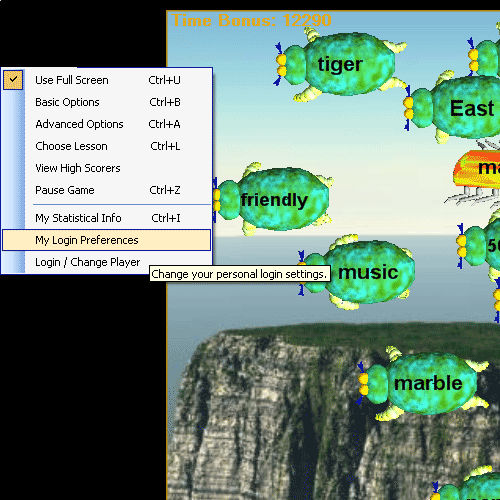
Clicking on the French student My Login Preferences menu item brings up the screens to manage student user settings and login preferences for the Hungryfrog French software program for homeschool French programs and K-12 French teaching curricula:
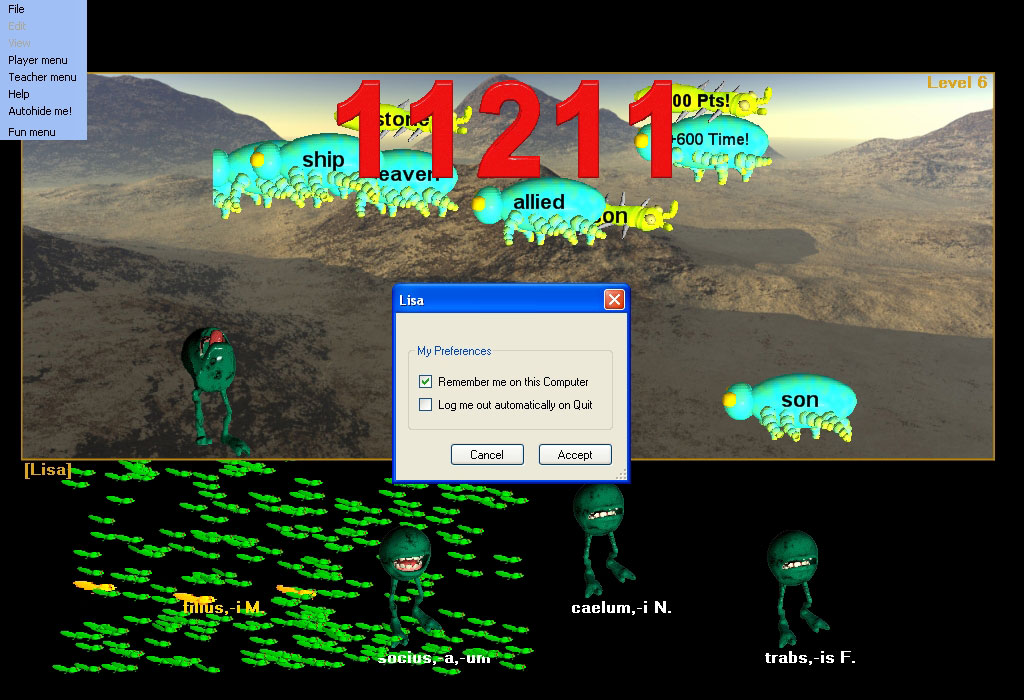
'Remember me on this Computer' - turn on or off presence of student name in the list at startup and login.
'Log me out automatically on Quit' - turn on or off the automatic logout of student account on game quit
When you as a French student (or as a French teacher using the software program and French Teacher Menu features) have 'Remember me on this Computer' checked, your name will appear in the list at the login dialog at startup and when you login or out of the program:

When you use this dialog either as a French teacher or French student to turn off 'Remember me on this Computer' your name will not appear in the list. You need to be logged into the program whether you are a French teacher (French homeschool program teacher or K-12 French teacher) or a French student. To access the features of the French Teacher Menu, you must be logged into the program. You do not need to be remembered on the computer to use the Hungryfrog French Teacher menu features of the French software program, however. You can login, change program settings using the French Teacher Menu options and then logout without leaving your name in the list of remembered French students (or French teachers). If you use the French Teacher menu to define a teacher password, then you need to remember your password, but you do not need to keep your account remembered on the computer. You can access the French Teacher Menu settings from ANY French student or French teacher account - not just your own.
|
Hungryfrog Education Software
Online Program Tips
Share with other Hungryfrog Education Software users
Make it a habit to use the 'Upload to Web' button frequently when you create new language vocabulary lessons using the Teacher Menu | Lesson Manager in Hungryfrog education software language vocabulary games.
When you upload your language vocabulary lessons and other game content to the Hungryfrog education software online program user community, you are not only enabling others to learn from your lessons, but you also can access them yourself if you are using a different computer from the one you use regularly. All lessons which get posted to the online program user community pages are always accessible to everyone at any time.
Do you have a set of favorite Spanish language lessons? Use the 'Upload to Web' feature to enable others wanting to learn the Spanish language as you do to share your insights or match your classroom lessons. The more lessons you post, the more others will be encouraged to post their own to help make this open community education software computer game design to work!
|
Hungryfrog User Community
Participate in the Hungry Frog Education Software User Community to share your lessons and ideas with others and to report program bugs and suggest improvements to the PC computer software and the free Java applets at the web site.
|
If you have 'Remember me on this Computer' checked and 'Log me out automatically on Quit' checked, then your name will appear in the Hungry Frog Login screen every time you start the game and the Hungry Frog Login will appear when you restart the French software program after you quit. Your selection of 'Log me out automatically on Quit' means that when you quit the game you log out, and as you are quiting not just switching users during the same game session, you will log out and the game will exit with no player logged in at all. Hence, the appearance of the Login screen at the next game start.
If you have 'Log me out automatically on Quit' UN-checked and quit the game, then when you logout YOU WILL REMAIN LOGGED IN WHEN THE GAME RESTARTS. The next time you restart the game (or anyone else restarts the game) your account will the active player account and the game will start where you left off.
NOTE: If you are a solo user using the program on one computer, you can un-check 'Log me out automatically on Quit' and un-check 'Remember me on this Computer' and the program will behave as if it were only for one player and had no multi-user login/logout at all. You can quit and restart the game and the game will pick up where you last left off with no dialogs in between. You will be the only person using the software, and the program will not display the login screen as long as you do not change your My Login Preferences settings.
See the Player Menu | Login / Change User pages for details.