'Users' can be French teachers of homeschool French teachers for French students
The Player Menu 'Login / Change User' menu item lets users login or out during a game session. The game state for logging out users is saved. The game state for logging in users is restored. Users can by French students or French teachers. French teachers or French homeschool teachers can access the French Teacher Menu whether they have logged themselves in or one of their French students is logged in at any time.
The French Teacher Menu applies more to French teachers than French students, and the Player Menu applies more to French students (game players) than to French teachers or homeschool French program instructors, however French teachers will use the Player menu and French students will use the French Teacher Menu in most circumstances at least somewhat. Particularly in homeschool French study programs, there will be a lot of crossover. Unless password protection is enabled via the French Teacher menu password manager tab, all of the game menus are always accessible to any logged in user whether that user is a French teacher or French student. The menus are organized subjectively by teacher / student (player) categorization of their functions, but there is no distinction in 'users' between teachers and students.
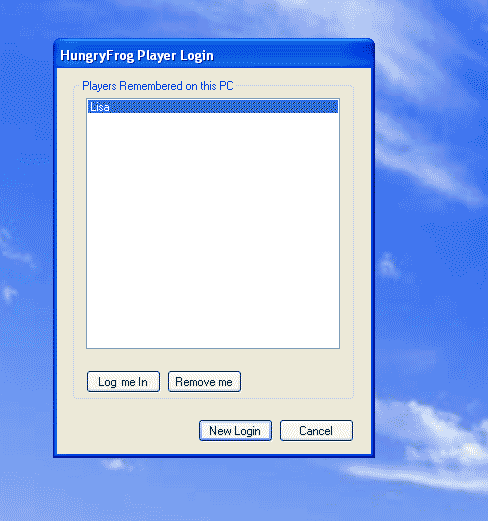
When you click on the menu item, you are presented with the login screen which contains the list of users who have 'Remember me on this Computer' checked in their user preferences. The list may be empty if no users have this option checked, and the list will be empty the very first time the game is started after software installation.
Player Login list with several players having 'Remember me on this Computer' checked for their accounts:

'Log me In' button - Log in the selected user
'Remove me' button - remove the selected user from the list of remembered users
'New Login' - create a new user account
'Cancel' - exit
When the player clicks 'New Login' a new account is created (see New Logins).
When a player selects their name from the list and clicks the 'Log me In' button, the game state which was saved when they last logged out from the game is restored and the game picks up exactly where they left off. Their game level, score, vocabulary, statistical data, lifetime and current game statistics and other user information are all restored fully.
Hungryfrog Education Software
|
Hungryfrog User Community Participate in the Hungry Frog Education Software User Community to share your lessons and ideas with others and to report program bugs and suggest improvements to the PC computer software and the free Java applets at the web site. |
When a player selects their name from the list and clicks the 'Remove me' button, they are prompted to validate their identity:

If you did not enter a password when you first created your user account, then do not enter a password to remove yourself from the list of players. If you did enter a password when you first created your login, then you need to enter it now to remove yourself from the list of remembered players on the computer. If you have forgotten your password, and you are a French student where your teacher or homeschool French teacher has set up the software for you, then your teacher or homeschool French teacher can reset it for you from the French Teacher Menu. Once you have entered your password, click the 'Remove Me' button and your user account will be removed from the computer. Your game state, lifetime and current statistics will be deleted.
When the game is started for the first time, or when no players have 'Remember me on this Compouter' checked in their preferences, the Hungry Frog Player Login list is empty at game start or player login/logout and you must create a new login to continue if you are not logged in already. If you are logged in, but you do not have 'Remember me on this Computer' checked and you are the only user, you will also see a blank list and if you hit 'Cancel' you will remain logged in but not appear on the list.
A blank login screen is displayed:

Click the 'New Login' button to continue.
A new Player login dialog appears :

Enter your user name. This user name will be displayed as the player name on screen as you play and be your name when as a game player you make scores which are placed in the high scorers list. Select your 'Remember me on this Computer' and 'Log me out automatically on Quit' options described in the Player Menu | My Login Preferences page.
Click 'Login' and you are added as a new player in the list of players remembered on the computer if 'Remember me on this Computer' is checked. If 'Remember me on this Computer' is not checked, then the game starts while bypassing the login list display and you are logged into the game directly. If you also have 'Log me out automatically on Quit' checked and 'Remember me on this Computer' UN-checked, then when you quit the game and restart your game state and player information WILL NOT BE RESTORED. You must either have 'Log me out automatically on Quit" UN-checked or 'Remember me on this Computer' checked to have your user state retrievable when you exit and restart the game.
NOTE: If you have "Log me out automatically on Quit' UN-checked and 'Remember me on this Computer' UN-checked, then at game restart your player account is automatically restored. However, if another player then logs into the game and logs out or exits, your account information is not longer retrievable. It is recommended that you use 'Remember me on this Computer' in most circumstances if there are multiple users using the same computer.
A new player added to the list: