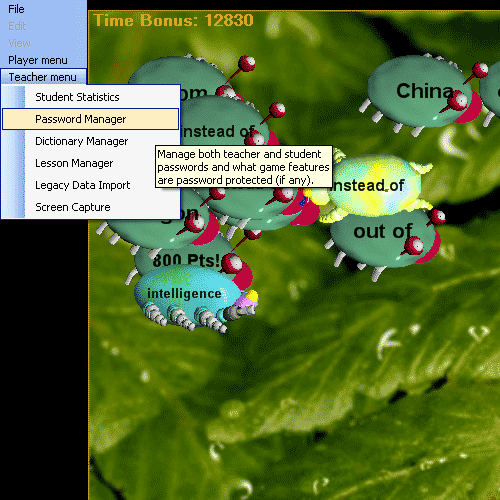
The Hungry Frog French Teacher Menu Password Manager is where you change Teacher passwords and set the level of password protection for a variety of game features as well as manage your French student passwords as a French teacher / administrator.
Hungry Frog French Teacher Menu | Password Manager
The default password for all Hungry Frog French students unless they enter their own password, and the default password for the Hungry Frog French teacher password, initially is a blank password entry (empty string).When you first access the Hungry Frog French Teacher Menu Item | Password Manager, at the first time you run the game the teacher password will be blank. If you want to change it to something else, you use this dialog French Teacher Meu | Password Manager to make that change.
IMPORTANT: The blank or password (where you type nothing in the password box or delete all existing text and type nothing to replace it) is special for the Hungry Frog French teacher password. NO PASSWORD PROTECTED FEATURES ARE BLOCKED IF THE HUNGRY FROG LATIN TEACHER PASSWORD IS BLANK. The reason for this is so you as the French teacher (or homeschool French program teacher) can easily switch from a password protected game state to an unprotected game state just by changing the password but not by changing any of your password protection preferences. If you want your password protections to be enabled, make sure you use a non blank password.
Password protection is not designed to be high level protection. In the Hungry Frog French langauge software program there isn't any personal student data stored in the program that any other student or anyone else would not want to share. Password protection instead is to make it harder for accidental changes to game settings to take place or for accidental deletion of French student accounts to take place. Password protection for things like the French Dictioanary manager and the French Lesson Planner menus, are to make these less accessible to casual users, but the idea is to keep the program simple and easy to use rather than complicated. Unless you find that you are having a problem with students messing around with settings and inconveniencing other students by doing so, you probably want to leave password protection off. Our assumption is that most homeschool French students (and French teachers) are honest folk and aren't going to go out of their way to ruin the program for others. However, we recognize that in any homeschool French setting or K-12 French computer lab, mistakes can be made, and accidents can happen. We don't want you as a French teacher or French homeschool program leader to return to the software one day after your students have had a good play session only to find that you favorit French study lessons are all deleted, or your French dictionary words are replaced with gibberish. The level of password protection is designed to be in this area of balance. One caveat is that if you create no Hungry Frog French teacher password at all, then at any time any of your French students or anyone else running the Hungry Frog French softwar program can create their own (as they existing one will be blank) and then exit the program and you will not know it. Therefore, you may want to create a teacher password, but not enable any password protection. This will prevent a student from accidentally creating a teacher password and not remembering it. If you have lost your Hungry Frog French password, just send us an email at sales(at)hungryfrog.com and we can reset it for you.
Hungryfrog Education Software
|
Hungryfrog User Community Participate in the Hungry Frog Education Software User Community to share your lessons and ideas with others and to report program bugs and suggest improvements to the PC computer software and the free Java applets at the web site. |
Clicking on the Hungry Frog French Teacher Menu Password Manager item first brings up the Hungry Frog French Teacher Password window.
Hungry Frog French Teacher Password Window in Hungry Frog French language software program v6:
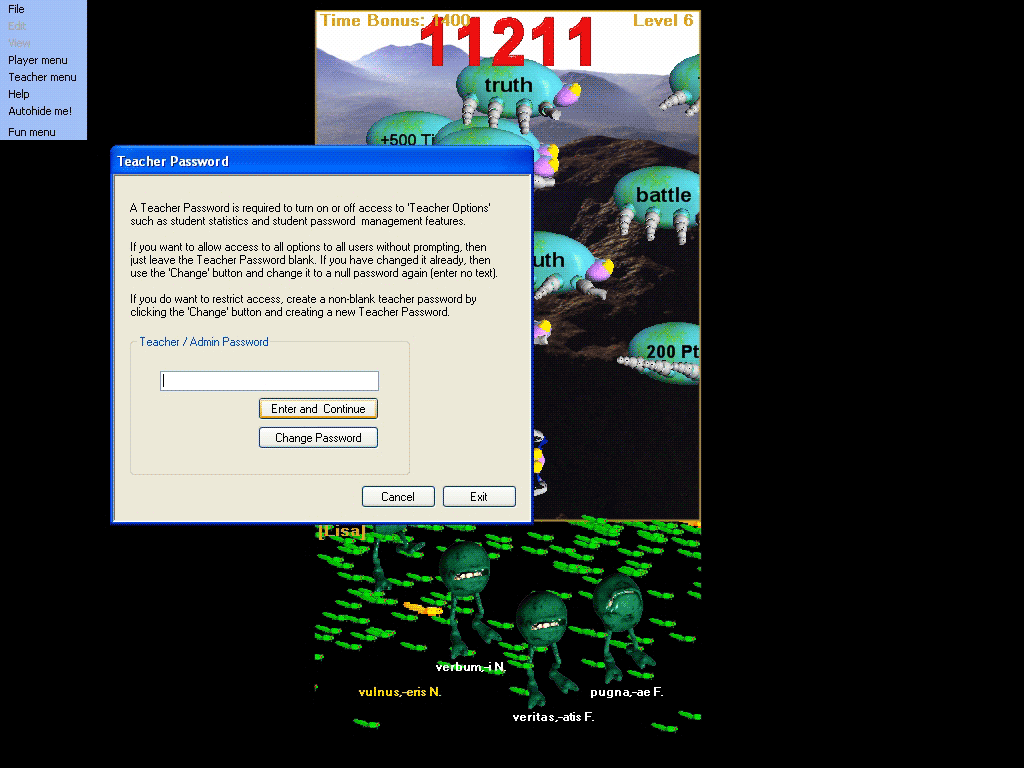
To change the Hungry Frog French teacher password, click the 'Enter and Continue' button after you have typed the current password (which is blank initially).
The change password dialog appears:
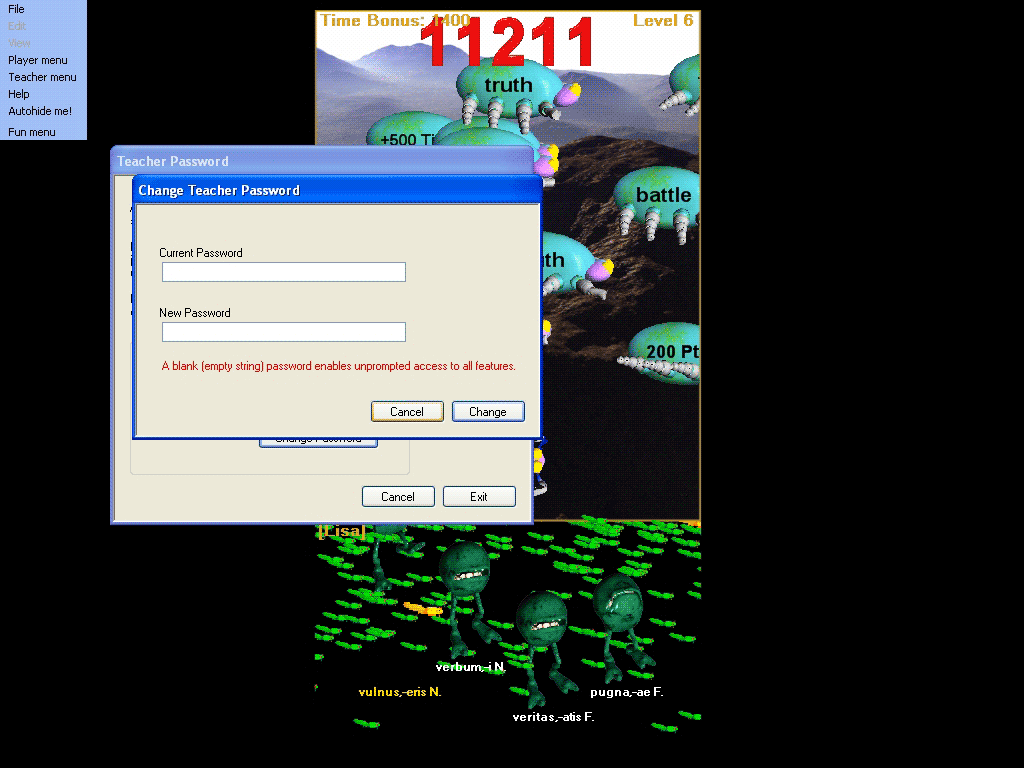
Retype the current password to confirm, and then type the new password, then click the 'Change' button. The new password is now set and you move to the main screen for Hungry Frog French teacher and student password feature management.
The Hungry Frog French Teacher Password Feature Manager dialog appears. The dialog is a tabbed dialog and the window first opens with the 'Student Passwords' tab selected. This is where you can view, edit, or clear student passwords for all of your French students. The idea behind the Hungry Frog French student passwords is prevent one student from deleting another student's account by accident (or on purpose) without knowing the password. Password protection is designed to be limited in scope and not obtrusive. Under most circumstances, your students should leave their passwords blank as in most homeschool French teaching groups and K-12 French classes we hope your students will respect others program settings. If you start to have a problem in your French homeschool program with one homeschooler erasing others logins, then you can suggest that everyone start to use passwords, or you as the homeschool program head can create passwords for them.
The two tabs in the dialog are:
'Student Passwords' tab - manage student passwords here.
'Password Protected Features' tab - set what game features have password protection enabled.
Hungry Frog French Teacher Password Feature Manager | Student Passwords tab:
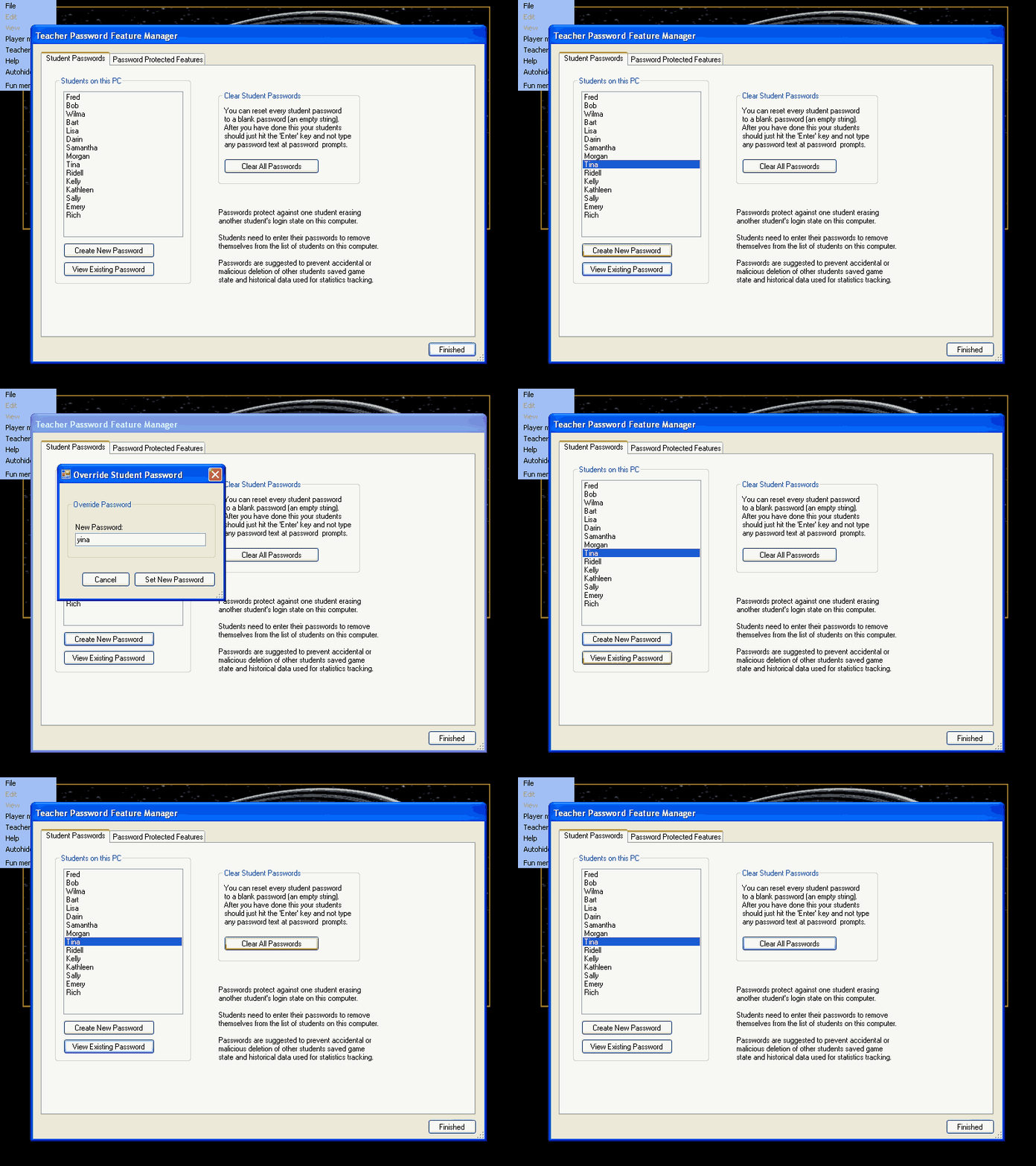
'Students on this PC | Create New Password' button - make a new password for the selected student.
'Students on this PC | View Exisiting Password' button - view the current student password for the selected student.
'Clear Student Passwords | Clear All Passwords' button - clear ALL students passwords at once.
The movie above shows the process of checking a student's existing password, changing it, confirming it was changed properly, then clearing all passwords for all students and confirming that the student's password was properly cleared in the 'Clear All Passwords' process.
Click on the 'Password Protected Features' tab to switch tab views from the Hungry Frog French Student Passwords tab to the next tab.
Hungry Frog French language software screen capture: Hungry Frog French Teacher Menu | Password Manager | Password Protected Features tab:
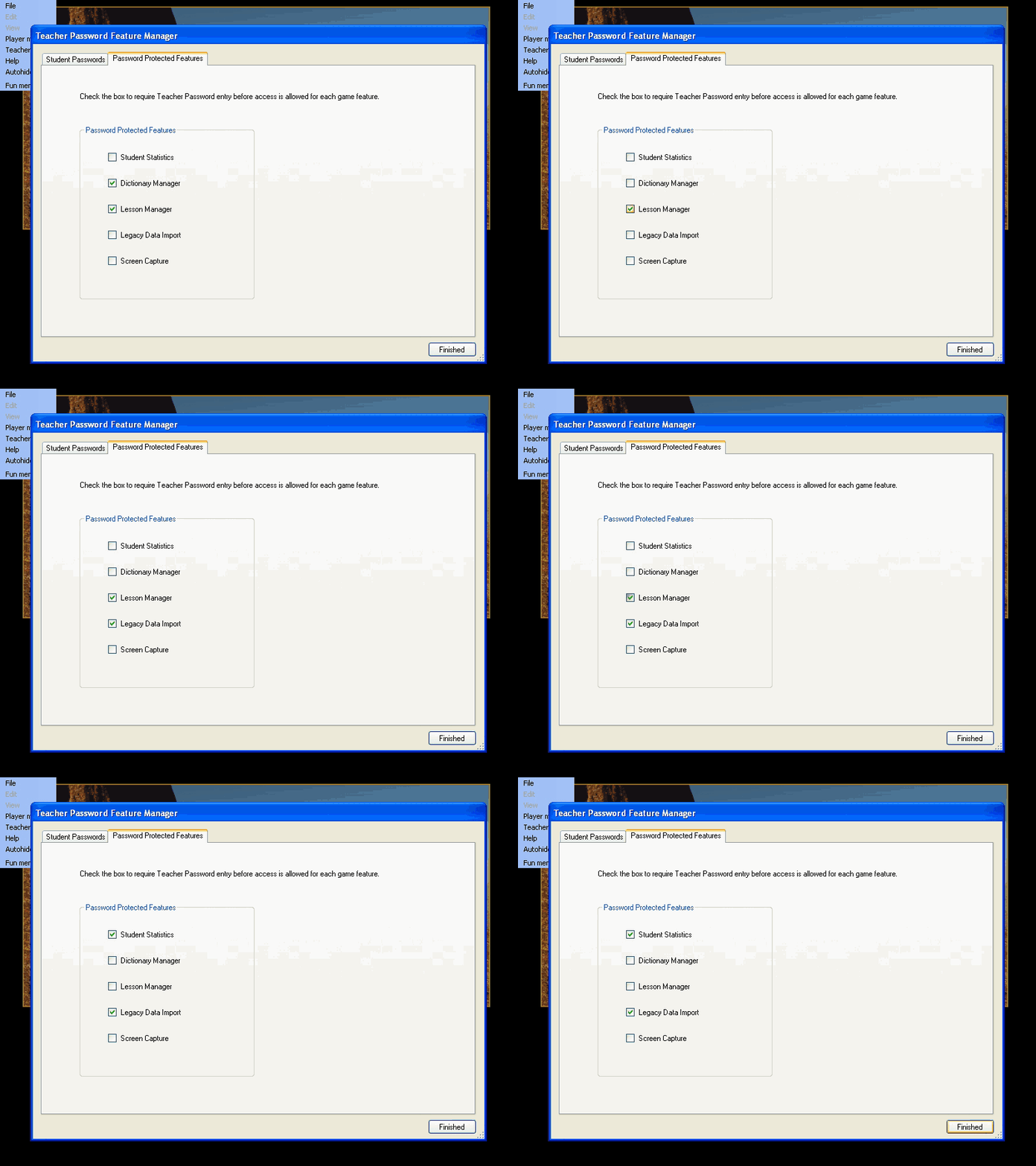
The 'Password Protected Features' tab lists the menu items which can be designated as requiring the Hungry Frog French Teacher Password before they can be used.
'Student Statistics' check box - enable password protection of the Teacher Menu | Student Statistics feature.
'Dictionary Manager' check box - enable password protection of the Teacher Menu | Dictionary Manager feature.
'Lesson Manager' check box - enable password protection of the Teacher Menu | Lesson Manager feature.
'Legacy Data Import' check box - enable password protection of the Teacher Menu | Legacy Data Import feature.
'Screen Capture' check box - enable password protection of the Teacher Menu | Screen Capture feature.
If a non-blank teacher password is used, then any of the checked items will require the entry of the correct teacher password before they can be used.