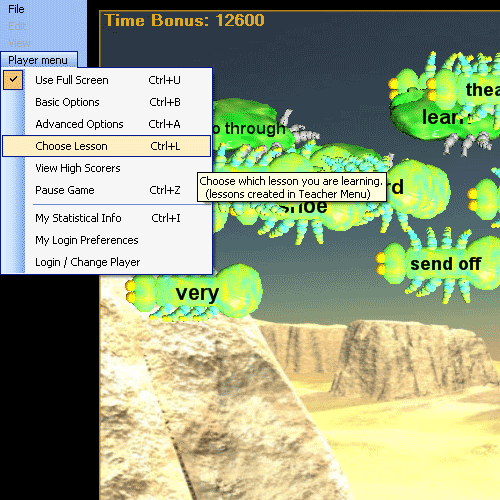
The Choose Lesson menu item in the Player Menu defines the current French study lesson for the game in progress.
Player Menu | Choose Lesson:
In these examples for the French software program, the French dictionary is the source for the French words in the French lessons available for students to learn. If you have more programs than just the French software program, you can use the French Lesson Planner to create more lessons than just French lessons and you can use them however you would like. You can even mix French words and words from other language lessons (such as Homeric Greek and use them in the same learning session).
When the Choose Lesson menu item is selected in the French software program the 'Lesson Chooser' dialog opens:
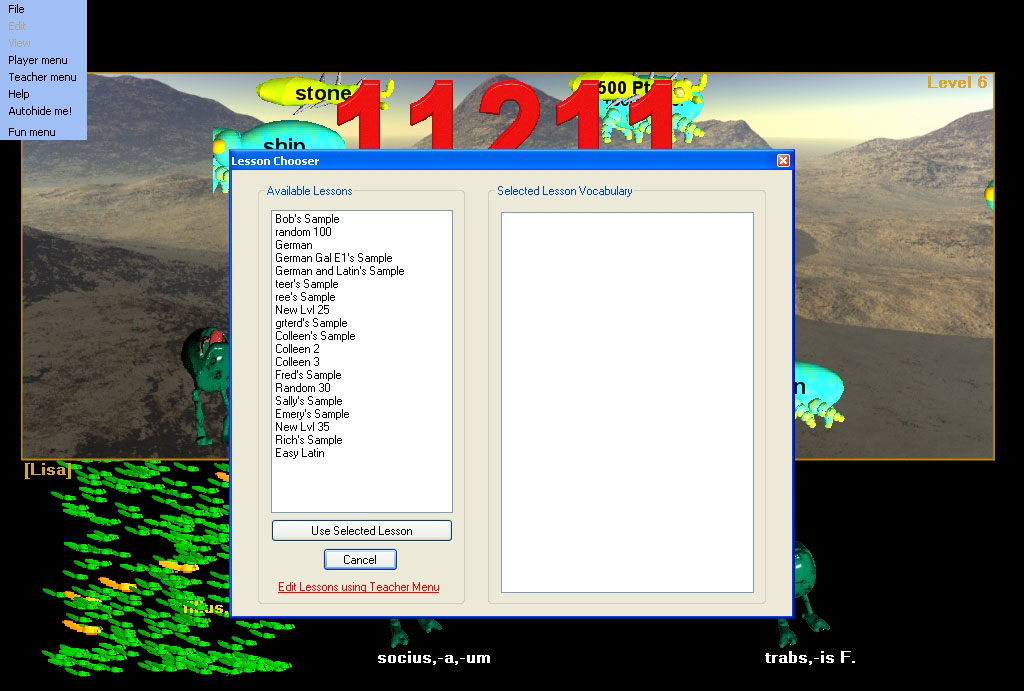
The Lesson Chooser dialog is for choosing a French lesson to be used in the current game. It is not for creating or editing new or existing French lessons. The set of French study Lessons are instead created and edited using the French Teacher Menu | Lesson manager dialog. These are the French study lessons which are available in the Lesson chooser dialog.
When first opened, the Lesson Chooser dialog presents on the left a list of all available lessons with no lesson selected, and the list of French study words on the right showing the contents of the selected lesson is blank because no lesson is yet selected. Clicking on a lesson in the list shows the contents of the lesson in the box on the right in the dialog. Depending upon how many you have created, the list may include any number of lessons, and they may be of different languages and game topics depending upon which Hungryfrog software programs you have purchased and installed. Some lessons may have vocabulary of mixed languages if they were created from different language dictionaries. You can mix lessons from the French language software with lessons from other Hungryfrog language software programs. You can use the 'Lesson Chooser' dialog at any time during game play and not interrupt the current game in progress, but the current lesson you are playing will be restarted with the new lesson vocabulary if you alter the current French study lesson.
Hungryfrog Education Software
|
Hungryfrog User Community Participate in the Hungry Frog Education Software User Community to share your lessons and ideas with others and to report program bugs and suggest improvements to the PC computer software and the free Java applets at the web site. |
The Lesson Chooser with a short French word lesson selected in Hungryfrog French game:
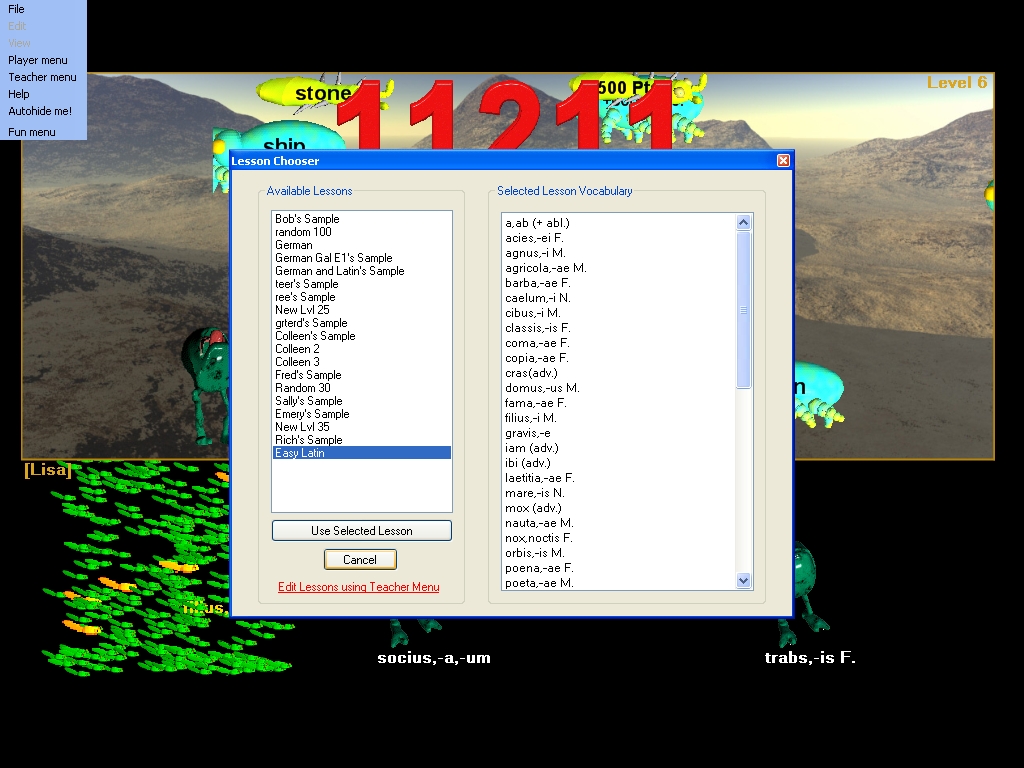
The right side listbox displays the list of French vocabulary from the selected French study lesson from the list shown in the 'Available Lessons' list box. You can preview the French vocabulary which is in the selected French study lesson before you decide to use it. If you do decide to use the lesson, clicking 'Use Selected Lesson' button will quit the dialog and the game will restart the level your were playing, resetting the frogs to use the vocabulary of the selected French study lesson. Your game progress will not be otherwise interrupeted. If you are play level 30, you will stay on play level 30, but the French vocabulary will change for the rest of the game until you decide to switch study lessons again. At any time you can 'Cancel' and return to the game at the exact location you left off in the level.
Whether you are teaching a French homeschool course or using the French software program in a French curriculum in high school, or even if you are using the Hungry Frog French software as just an individual to learn French yourself, it is best to create a variety of vocabulary lessons and then use the French lesson planner menu to save them to disk. That allows you to have them backed up, and it lets you as a French homeschooler share your vocabulary lesson plans with others who homeschool French like you do. This goes doubly true for the French classroom environment, where you should always keep backups of important teaching materials such as your French dictioanaries (created with the Hungry Frog French Dictionary Manager) and your derived French lesson sets.
'Use Selected Lesson' - switch to the vocabulary from the selected lesson and restart the current game level and continue play.
'Cancel' - exit and return to the current game level exactly where you paused to view the available lessons.