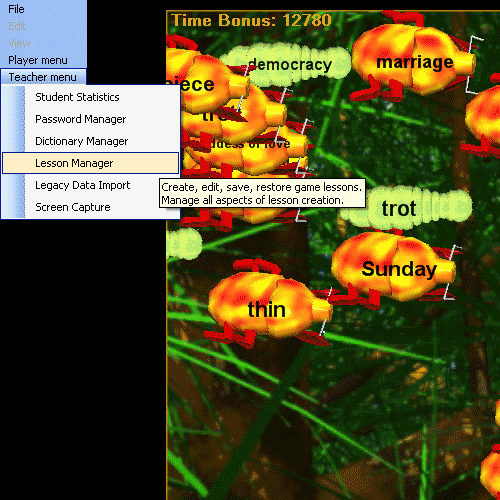
The Hungry Frog French Teacher Menu Lesson Manager menu item allows you to plan and manage French game vocabulary lessons (create, edit, import, export, save).
Teacher Menu | Lesson Manager:
When the French Teacher Menu | Lesson Manager menu item is selected the French Teacher Menu | Lesson Manager dialog opens:

1. The French Dictionary List Box | Dictionary
This scrollable list box presents the French language vocabulary available in the current working French language French dictionary (managed using the French Teacher menu | French Dictionary Manager). These define the list of French words and French phrases in the currently open French dictionary and are the French words and phrases you have available to add to your French study lessons. You can mix French words from any number of dictionaries if you would like (we'll show an example later). Normally you use one French dictionary (or other language dictionaries) and create many lessons from it. If you are running more than one language game, then your lessons will be shown together in this dialog in the Active Lessons box. You can select as many French dictionary entry items as you like in this list by clicking on them to select them.
2. The French Lesson List Box | Lesson
This scrollable list box presents the French vocabulary in the current French lesson which you are editing. If you have made changes to the current lesson you have active for editing, they will NOT be recorded permanently to the lesson unless you click the 'Make Changes Permanent' button.
3. Active Lessons List Box
This scrollable list box presents the list of all available lessons stored in the program's in game lesson planner. You can have an unlimited number of lessons which you have exported and saved to disk. Having all the French study lessons you teach saved in the in game system makes if convenient for you and your French students to access them quickly without going through any 'File Open' dialogs.
To view contents of French vocabulary lesson click on a lesson in the 'Active Lessons' list box.
NOTE: Students choose their French study lesson from the list you create here using the 'French Lesson Chooser' menu item in the player menu.
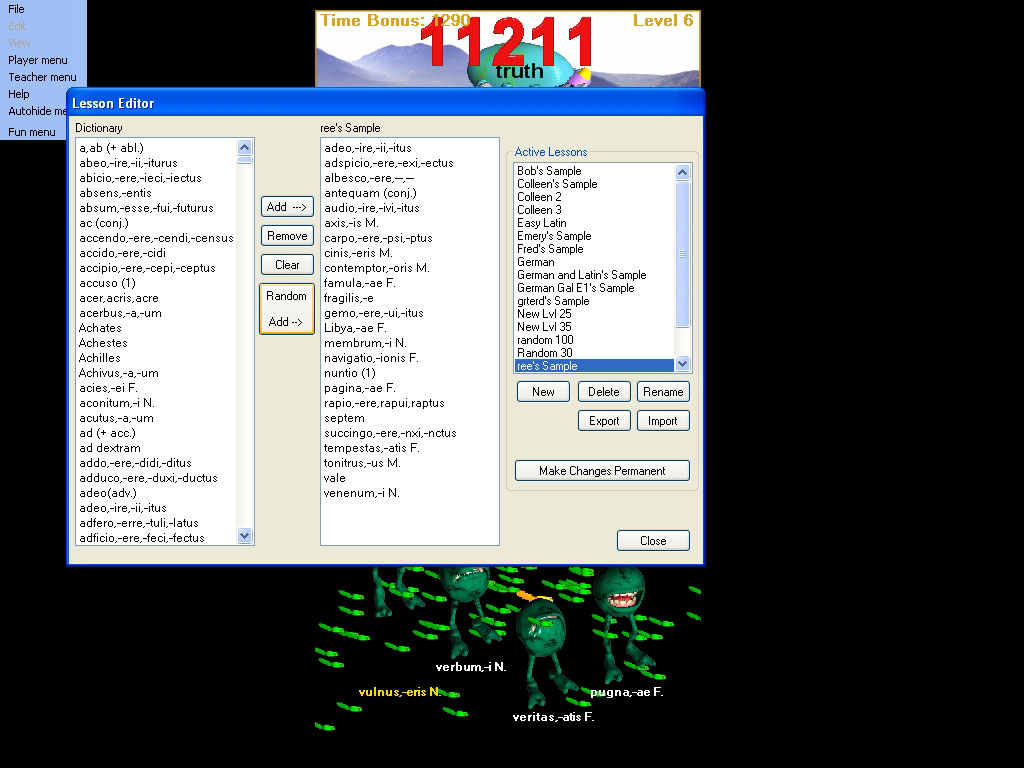
Hungry Frog French language game lesson selected:
Hungry Frog French language game lesson selected:
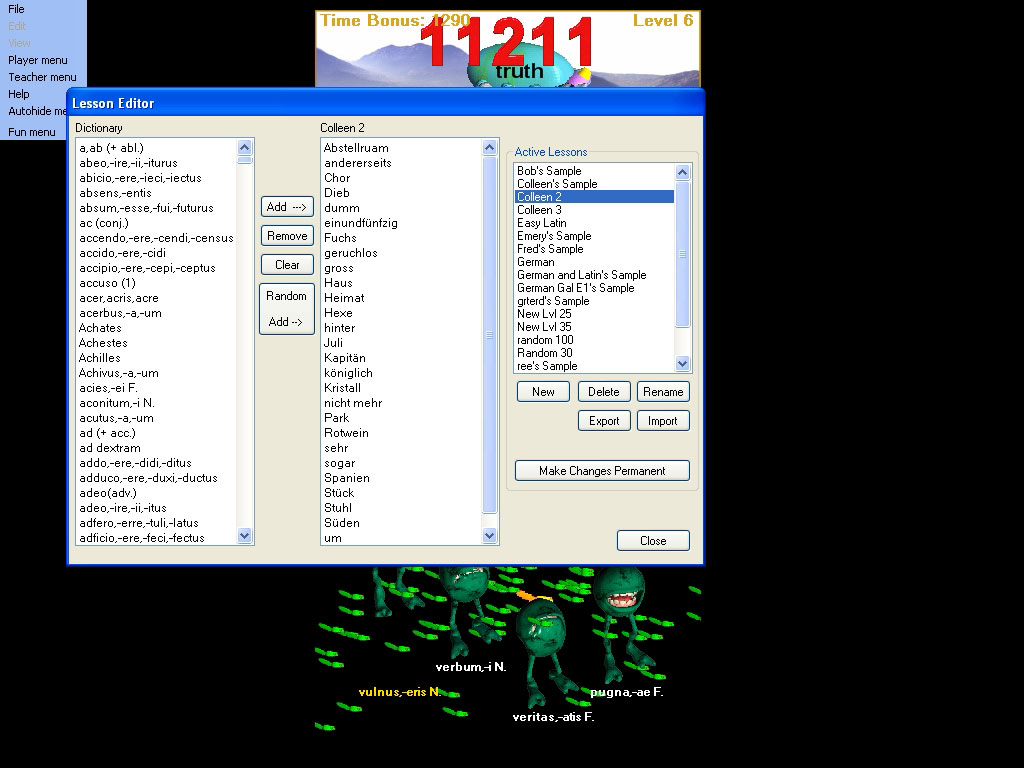
You modify lesson contents using the control buttons:
'Add -->' button - add all the words selected in the 'Dictionary' box to the currently selected Lesson.
'Remove' button - remove the words selected in the word list for the currently selected Lesson.
'Clear' button - clear all the words from the currently selected Lesson.
'Random Add -->' button - randomly pick a handful of words from the Dictionary and add them to the selected Lesson.
The 'Random Add' button is a very easy way to make some practice lessons from the French dictionary. If French words or French phrases get added that you don't want, just use the 'Remove' button to take them out.
Using the 'Random Add' button to make a new lesson from the French dictionary:
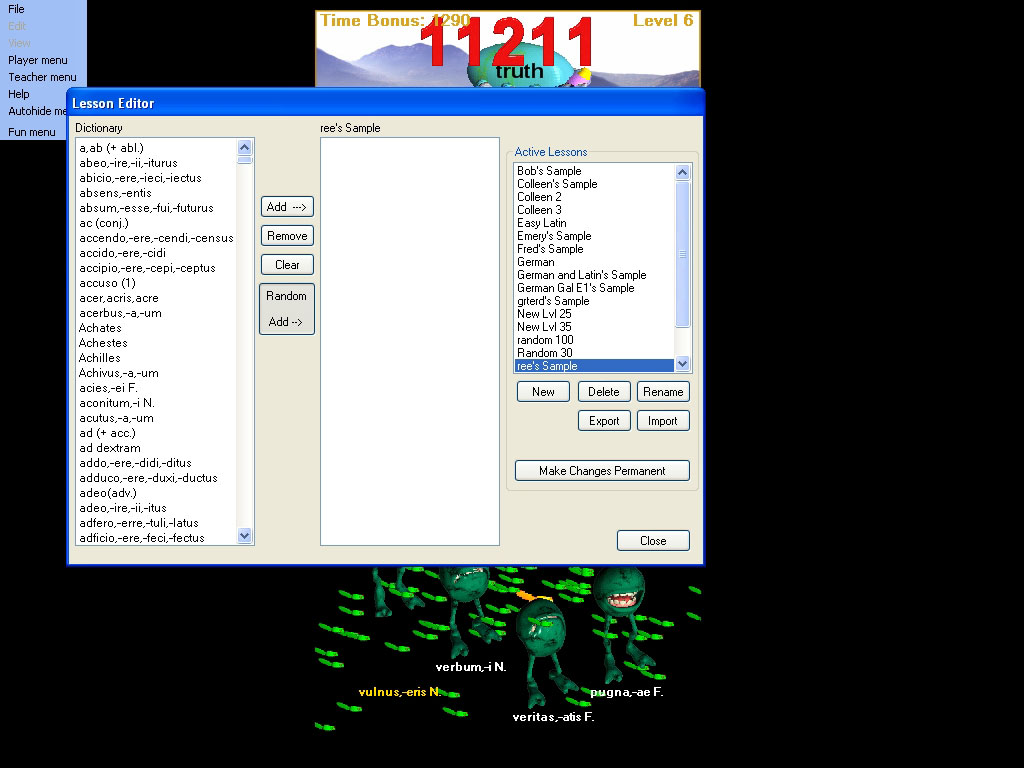
Click 'Random Add' button to add more words from the French dictionary to the new lesson:
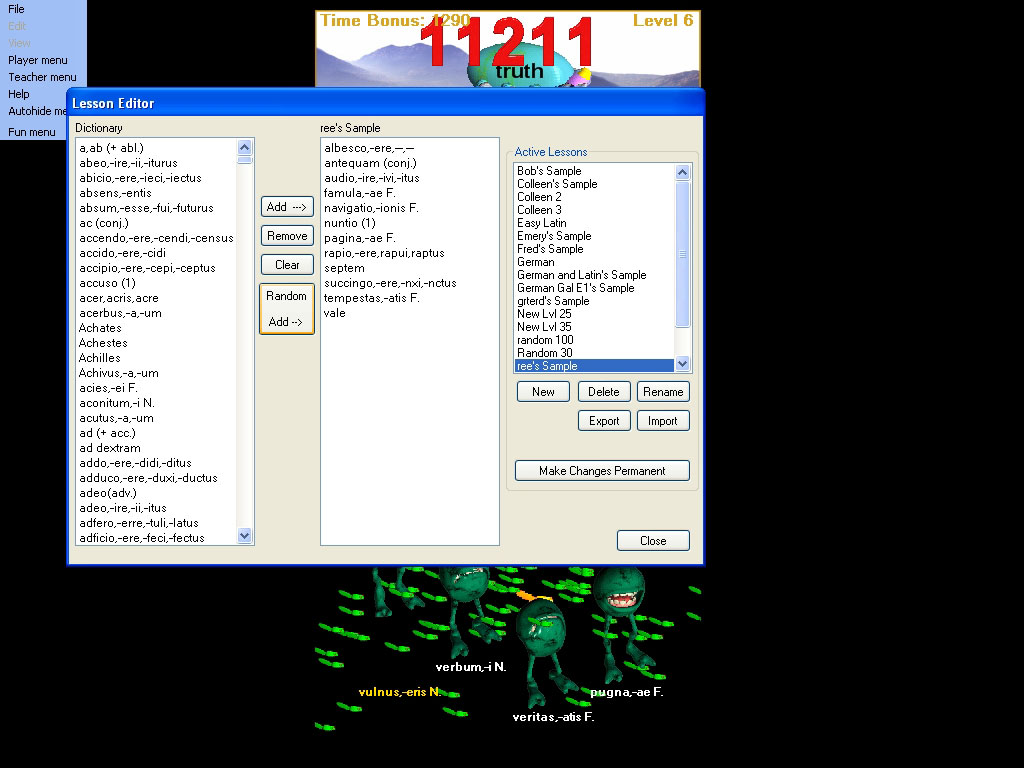
Drop in more French dictionary words and phrases, so give it another whack:
Finally, when you are satisfied with your changes select the 'Make Changes Permanent' button which saves the changes to the currently selected lesson with the internal lesson manager system. All the French dictionary words and phrases you have added to your lesson are now permanently a part of this French lesson.
French lessons on disk are unchanged. This does NOT change any French lessons you have exported to disk.
French lessons in active play as student French study lessons are unchanged. This does NOT change any lessons which are currently being used by French students studying the lessons and already playing games using those lessons. If you want your French students study lessons to change to reflect the updated editions you may have made to the lesson from the French dictionary, you MUST have the students reselect he modified lesson. Each student's progress is continuously tracked for the French study lesson they have active and because this data is unique to their learning ability - they must elect to change lessons manually if you change or edit the master lesson from which their play sessions are derived.
Hungryfrog Education Software
|
Hungryfrog User Community Participate in the Hungry Frog Education Software User Community to share your lessons and ideas with others and to report program bugs and suggest improvements to the PC computer software and the free Java applets at the web site. |
For example: You have three students each learning the French study lesson you previously created called 'French Study Lesson A' and which they have been using as their French study lessons for a few homeschool French program sessions for for a time in the computer lab. Each of these students will have built up a history of their progress on the contents of 'French Study Lesson A' and the French dictionary words it contains. This is the statistical data which they can view for themselves with the French Student Statistical Analysis menu in the Player Menu, and which you can view for all of the French students in your homeschool French group or French class under the French Teacher Menu | Student Statistics menu item. You saved 'French Study Lesson A' to disk when you created that French study lesson for your homeschool French group or class. You now change the French dictionary entries which make up the French word list for the 'French Study Lesson A' lesson by deleting a few and adding some new ones from the French dictionary. First, there are not changes to the 'French Study Lesson A' you saved to disk (unless you specifically save the lesson again to specifically manually replace the previously saved file). Second, the games in progress which the students are playing are NOT changed. In fact, if you homeschool French study program is large or you are in a large networked computer lab in a school setting, your students may actively be playing the game simultaneously as you are editing the lessons for the software program. Therefore, the game does NOT automatically reflect changes you make to the 'French Study Lesson A' lesson into the student's active lessons. If you want your students to use the newly modified lesson, you MUST tell them to choose the new lesson from the Player Menu French lesson chooser dialog.
Very important - save your changes with 'Make Changes Permanent' button:

IMPORTANT: You must click the 'Make Changes Permanent' button to have your changes recorded.
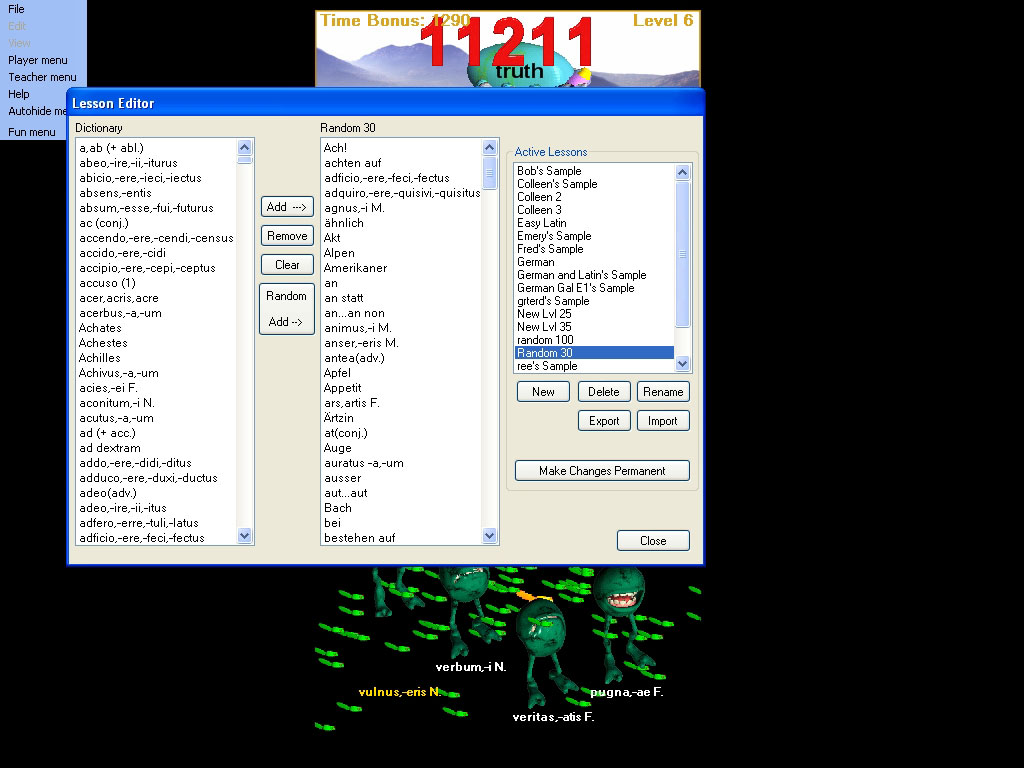
There is no restriction on how you create your lessons. You can mix and match from different dictionaries. You can mix French lanaguage vocabulary with French langauge vocabulary, mix French vocabulary with vocabulary from the Spanish language game - anything you would like. The lesson will present the mixed vocabulary to the player in the game.
Example: Mixing French classical language vocabulary with French language vocabulary:
Up to now we have dealt with saving and edition lessons which are stored with the games internal lesson management system. You select a lesson. Edit the lesson content. Click 'Make Changes Permanent' to save the changes.
You can also Import and Export lesson files to and from disk. The control buttons in the Lesson Manager for edition lessons at this level are:
'New' button - create a new lesson managed with the game's internal structure.
'Delete' button - delete the selected lesson from the game's internal structure.
'Rename' button - rename the selected lesson in the game's internal structure.
'Export' button - export the selected lesson to disk.
'Import' button - import a lesson previously saved to disk.
'Make Changes Permanent' button - save the changes to the currently edited lesson to the game's internal structure.
IMPORTANT: The games internal lesson manager which stores the lessons in the 'Active Lessons' list is completely separated in function from the 'Import' and 'Export' features. If you change a lesson and 'Make Changes Permanent' to save the changes it ONLY changes the lesson in the internal manager system. It does NOT change any exported lessons including the lesson you are modifying. Similarly, 'Delete' only removes a lesson permanently from the internal lesson manager system. It does not delete that lesson from disk if you have exported it already. Use the 'Export' feature frequently to archive your important lessons.
IMPORTANT: Changing lessons in the lesson manager makes the changed lessons AVAILABLE to students to select using the Player Menu | Choose Lesson dialog. However, it does not change the game lesson if they are actively playing a game based upon a lesson you modify in the lesson manager. Nor does it remove any word you may delete from the lesson which they have practiced or are practicing and are in their Statistical Analysis Lifetime or Current statistics.